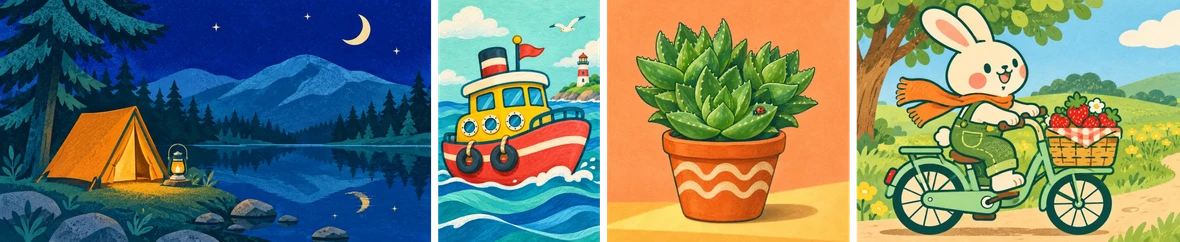
2628 × 540 px
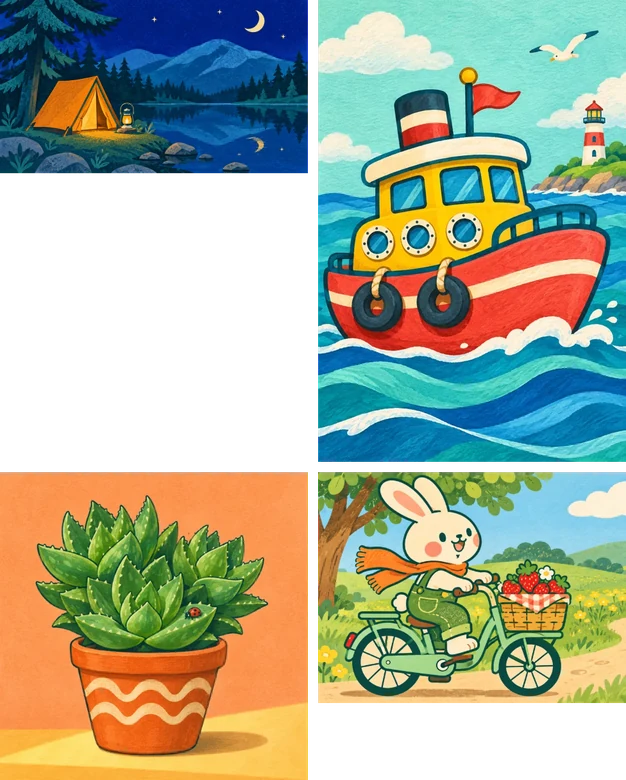
Use a row to compare pictures. Each postcard is 540 px high and keeps its original proportions.
PNG · JPG/JPEG · WebP · GIF · AVIF · SVG · BMP
Photos stay on your device. No uploads.
One free canvas for your photos and screenshots, right in your browser.
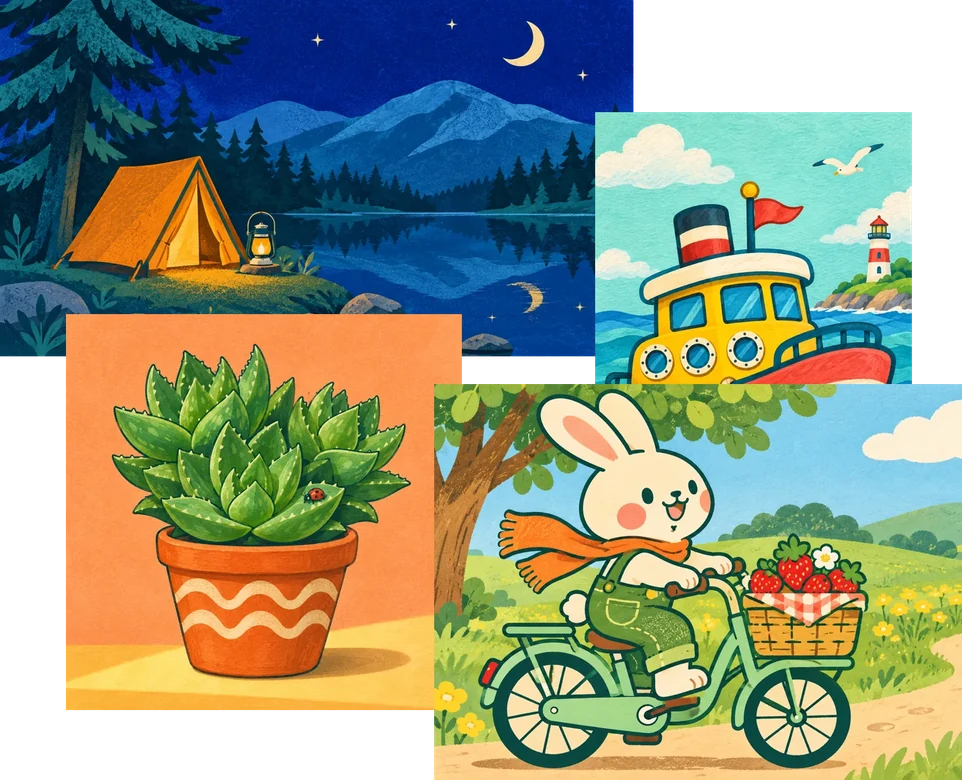

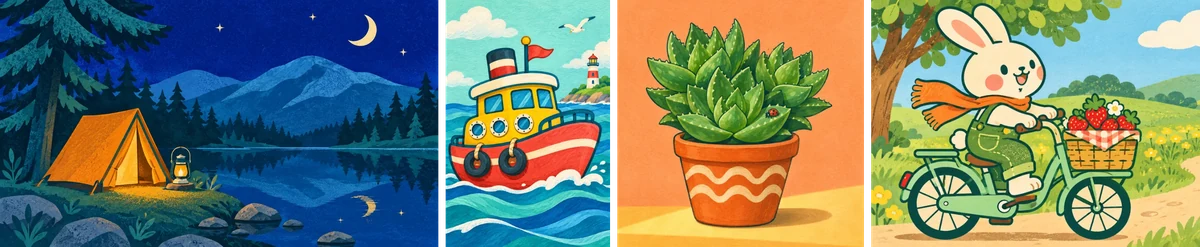
Select the pictures together and open Layout. The campsite starts at 960 × 540 and the tugboat at 480 × 720. Compare what happens when the two share a height, share a width or keep the positions you choose.
2628 × 540 px
Use a row to compare pictures. Each postcard is 540 px high and keeps its original proportions.
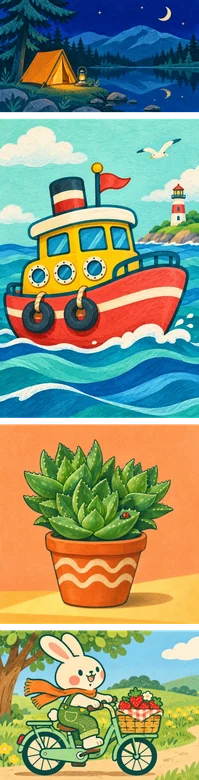
480 × 1878 px
Stack screenshots in reading order. Each picture is 480 px wide, and the tugboat keeps its tall shape.
976 × 1216 px
Two columns keep the pictures together. The tall tugboat sets the first row’s height, leaving space below the campsite.
1458 × 1182 px
Overlap the corners by hand. The finished image keeps the overlaps and the space between the outer edges.
Change the spacing. In the group settings, Gap controls the space between pictures and Outer border adds space around them. The size under the selection updates as you edit.
Change the order. Select one tile on the canvas, then drag it onto another to swap them. Use Unlink in place to move the pictures individually, or Unmerge to spread them out across the canvas.
Crop a wide photo to frame the part you want in the collage. Trim a transparent sticker to bring its visible edges closer to the next picture.
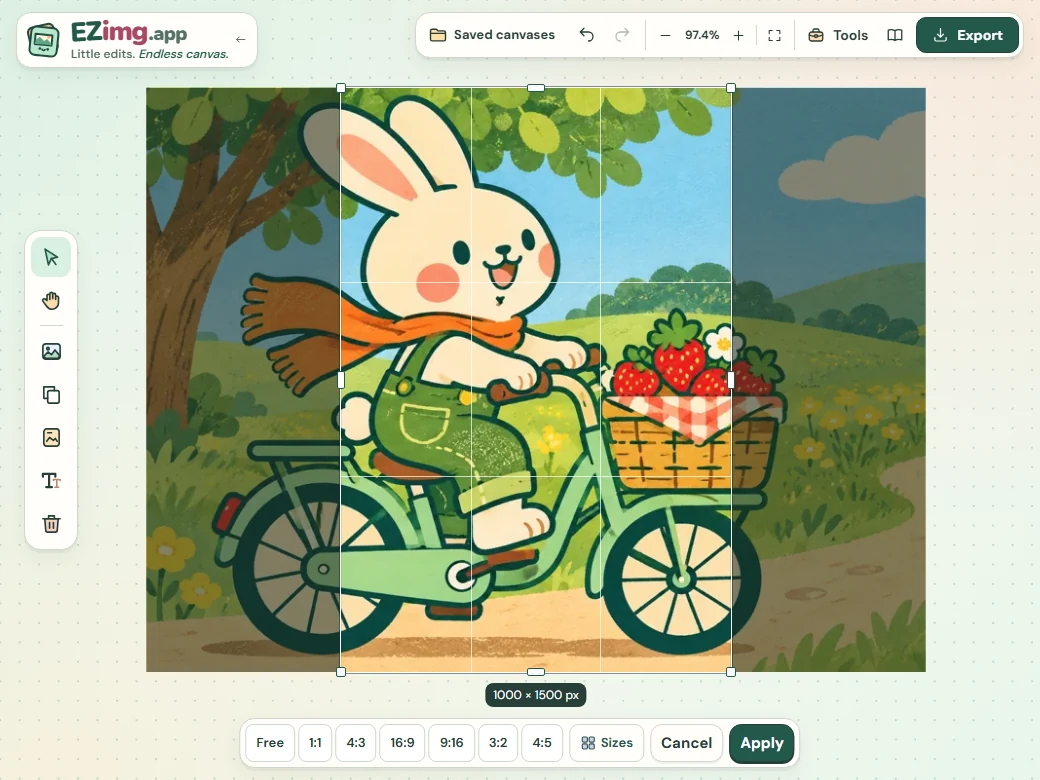

Double-click the picture to zoom in on the canvas. On a phone, double-tap it. In Sizes, choose the 1000 × 1500 Pinterest preset. The shaded parts of the path fall outside the Pin.
Drag the frame over the cyclist and choose Apply. To change the pixel dimensions while keeping all four edges, choose Resize and lock the proportions.


The chick’s file is a 640 × 640 square. Its clear border takes up room in a collage, even when you cannot see it. Select the sticker and choose Trim transparent edges.
The resulting PNG is 416 × 442. The chick keeps its original detail and the spaces around its outline stay transparent. Paste it onto a colored board to see the edge.
Sending the four postcards to a friend? A PNG keeps the finished row together. Coming back to move the tugboat tomorrow? An EZimg project keeps each picture editable.
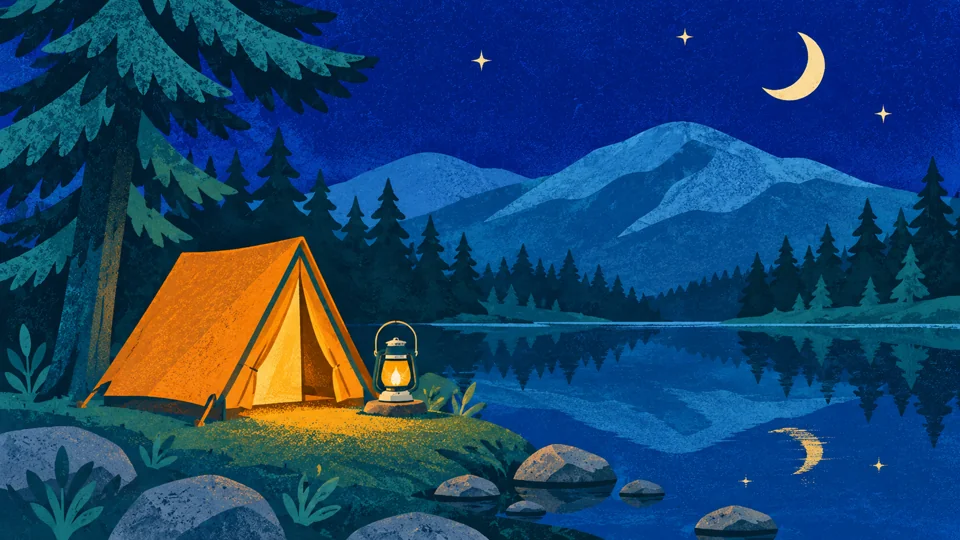
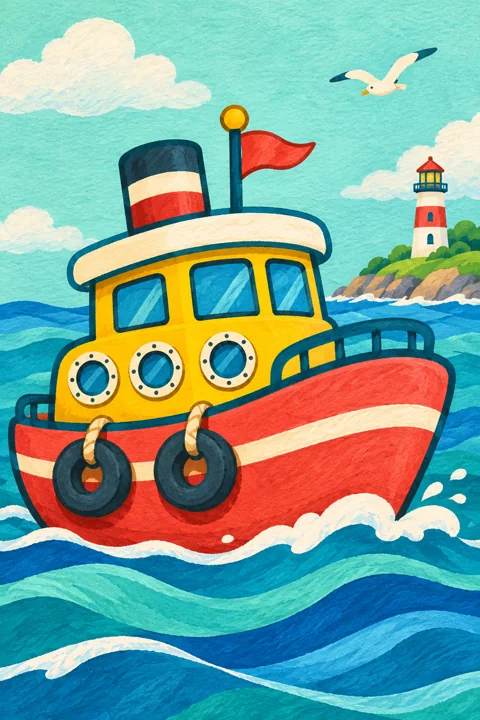
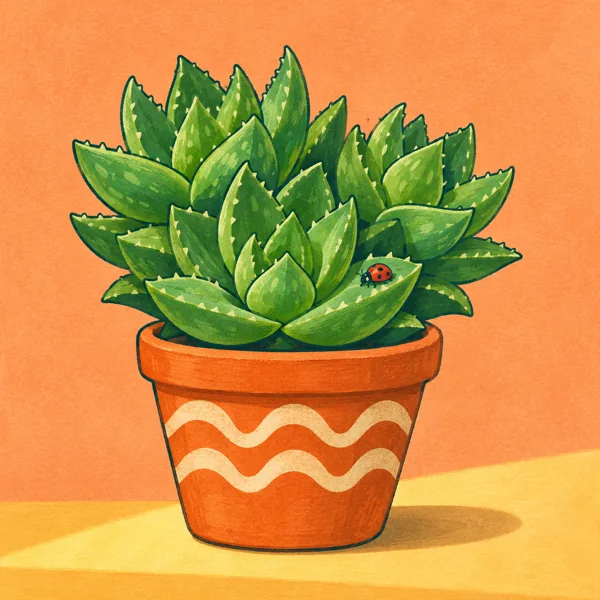
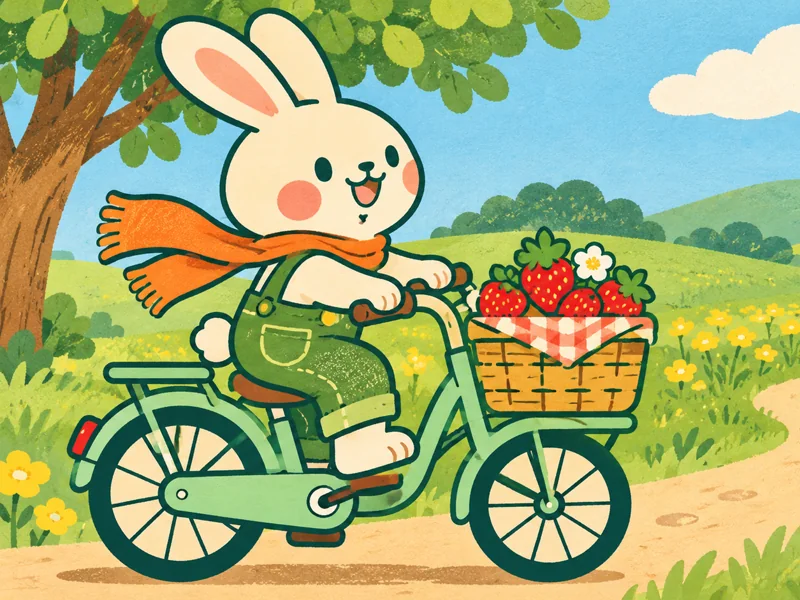
Select a postcard to see the original image inside the project.
Open the collage below, then choose Saved canvases → Download .ezimg. It saves the whole canvas, including any pictures already there, their original images and their crops.
On your next visit, choose Open .ezimg. All four layers return. Select the group and choose Unlink in place to move just the tugboat.
Open the collage, keep the four postcards selected and choose Export. Under Include, choose Selected images. Use PNG at 100% scale to get this 2628 × 540 image.
The PNG contains the visible artwork in one layer. Attach it to a message, or choose Copy on the canvas to paste the selection straight into a chat.
Compare layouts for two photos or a long screenshot, choose an export format, or find a saved canvas.
Drop both photos onto the canvas and select them together. Choose Side by side for a wide picture, Stack vertically for a tall one, or As placed to keep an overlap you arranged by hand. Adjust the gap, then open Export and choose Selected images. You'll get one image containing both photos. To send it straight to a chat, choose Copy.
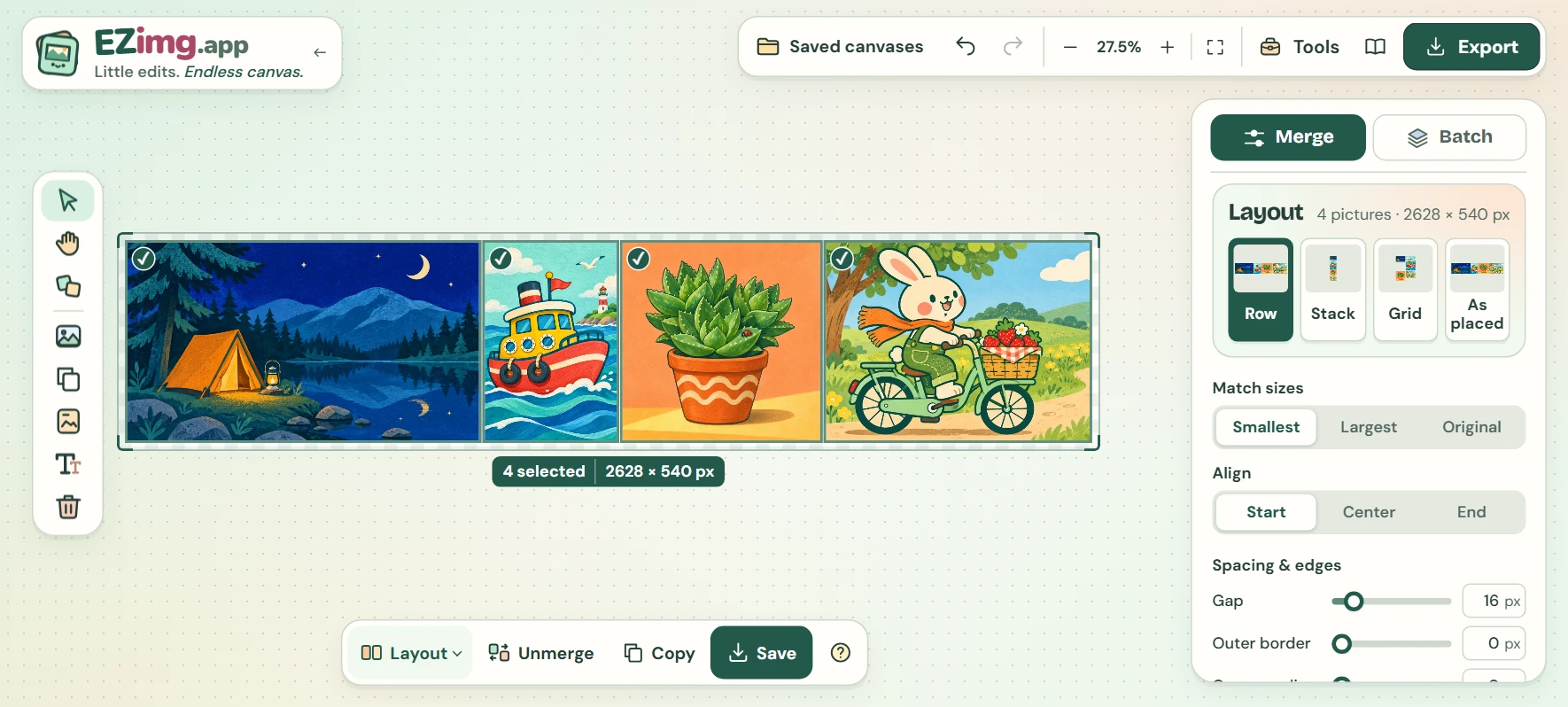
Paste the first screenshot, then paste the second. On a computer, hold Shift and click both images. In Layout, choose Side by side. Matching heights keeps the text in each screenshot in proportion, even if one screenshot is narrower. Drag one tile onto the other to swap their order. Set Gap to zero if you want the two edges to meet.
Crop any repeated header or overlapping rows out of each screenshot first. Select the screenshots and choose Stack vertically. Set a common width so the text lines up, then set Gap and Outer border to zero for a continuous strip. Check the order from top to bottom before exporting the selection. PNG works well for small text and interface details.
Start with the original files and keep each picture at its original pixel dimensions when detail matters. As placed keeps the positions and sizes you chose. Export the selection as PNG at 100% scale to preserve the rendered pixels without JPEG compression. Resizing a small picture to fit a much taller neighbour can soften it, so compare their dimensions before you export.
Open EZimg in your mobile browser and tap Add images to choose pictures from your photo library. Tap Select several, then tap each picture you want to include. Open Layout in the bottom bar and pick a row, a stack or a grid. In Export, choose Selected images to save just that collage.
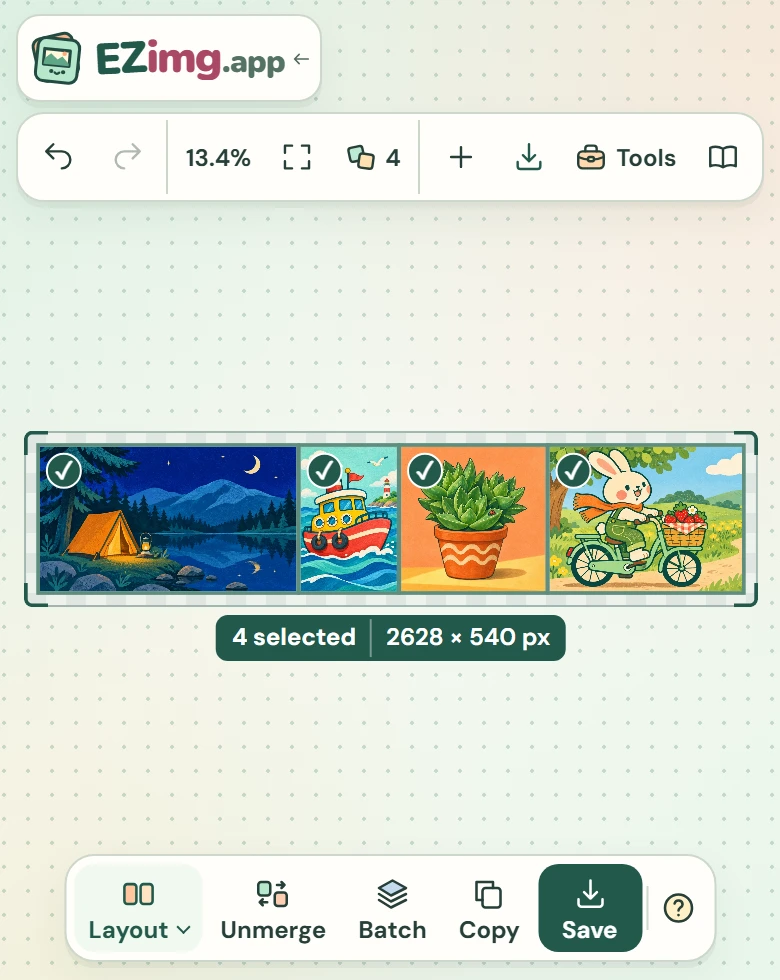
Yes. Select the photos and choose Grid. The pictures keep their proportions, so a tall photo can leave space below a shorter photo in the same row. Choose a background for that space or export a PNG with transparency. If you prefer every tile to have the same shape, crop the photos to a common ratio before arranging the grid.
Choose Add images or drop pictures onto the canvas. EZimg can open PNG, JPG, WebP, GIF, AVIF, SVG and BMP files that your browser can read. An animated GIF opens as a still image. For an HEIC photo, export a JPG or PNG from your photo library first.
Copy the screenshot, click the canvas and press Ctrl+V on Windows or ⌘V on Mac. You can also use Paste in the editor. If the browser blocks clipboard access, save the screenshot as a file and choose Add images.
The four example postcards are added beside your existing work and selected together. Try the layout or save just that selection. Use Undo to remove the example in one step, or use Fit to see your own pictures and the example together.
Select the group and choose Unlink in place to keep each picture exactly where it is. You can then select just the tugboat, move it or crop it. Unmerge also releases the pictures and spreads them apart on the open canvas.
Crop when you want to keep only part of the picture, such as the cyclist in a tall Pin. Resize with proportions locked to change the pixel dimensions of the whole picture. Trim transparent edges removes the clear outer margin of a sticker while keeping its visible artwork.
Choose a transparent group background and select Transparent in Export. PNG and WebP can keep those gaps clear. JPG fills them with a solid color, which you can choose before saving.
The export includes the space between the outermost pictures. Use Fit to find one sitting far away, move it closer or export only the selection you need. Zooming in changes your view of the canvas. The exported bounds follow the pictures themselves.
Select your photos, open Batch and choose Under 200 KB. Set the target to the limit on your form and process the pictures. Check each result before saving. If a picture still exceeds the limit, allow smaller dimensions and run the recipe again.
Reopen EZimg in the same browser profile on the same device. Saved canvases shows the work stored there. If local saving reports a problem, download an editable .ezimg copy before you close the tab. Clearing the site’s browser data removes the local copy.
Open Saved canvases, name the canvas and choose Download .ezimg. Transfer that file and choose Open .ezimg on the other device. The pictures, crops and layout reopen for editing. A finished PNG opens as one flat picture.
Use Undo for a recent edit. To recover a deleted layer after reopening the canvas, go to Saved canvases, then Open trash. Choose Restore beside the picture you need. Deleted layers stay in that canvas’s local trash for up to 30 days.
Your browser processes the photos on your device. Someone using the same browser profile may be able to reopen its saved canvases. An .ezimg file includes the original photos and pixels outside your crops. Export a finished picture when you want to share only the visible result.